Showing posts with label visual studio. Show all posts

Thursday, December 20, 2012

Error 21 CA0055 : Could not unify the platforms

After a recent upgrade from Silverlight 4.0 to Silverlight 5.0, I started getting this error from Visual Studio 2010

Error 21 CA0055 : Could not unify the platforms (mscorlib, Version=2.0.5.0, Culture=neutral, PublicKeyToken=7cec85d7bea7798e, mscorlib, Version=5.0.5.0, Culture=neutral, PublicKeyToken=7cec85d7bea7798e) for '[path to Silverlight project dll]'.

Took me a while to track it down, and I found the solution to my problem in this post.

Being that we don’t use Code Analysis, I just turned it off on my Silverlight project.

2012-12-18_1304

But if you do use it, you’re going to have to run the command line arguments as the post suggests.

Tuesday, November 22, 2011

Developing for a specific version of Silverlight

I recently ran into an issue where the version of Silverlight I had installed on my development environment didn’t match my end clients’ version of Silverlight.

I was running Silverlight v4.0.60831.0, they were running Silverlight v4.0.50401.0. (Who would of thought a 0.0.1 difference would of really mattered?)

Anyway I set out to accomplish two tasks

  1. Replicate the issue by uninstalling my version of Silverlight and installing there’s.
  2. Update my development environment so that I could fix the problem.

Here are my notes:

I using Control Panel to Uninstall Silverlight 4 from my test box.

I located an older version of Silverlight by using Microsoft’s “Microsoft® Silverlight™ Release History.” Which I installed on my test box.

I successfully reproduced the error.

I used Control Panel to Uninstall Silverlight 4 SDK from my development box.

I downloaded the SDK for the specific version I needed. Once again, using Microsoft’s “Microsoft® Silverlight™ Release History.” Which I installed on my development box.

I opened Visual Studio 2010, rebuilt the solution, deployed, the error was corrected.

That’s it. I hope it helps someone.

Wednesday, June 22, 2011

Grok talk on NuGet 6/22/2011 1800 EST

I will be giving a grok talk about “NuGet” (the Visual Studio 2010 extension) to the Dayton .NET Developers Group. If you’re in area, I invite you to come down. (Don’t forget to point and laugh Winking smile)

Here is my slide deck.

When: June 22, 2011 at 6pm EST

Where: 711 East Monument Avenue, Suite 101 in downtown Dayton, OH

Tuesday, February 9, 2010

If you’re a technology startup and need a FREE* MSDN Subscription, you should look into BizSpark

JoinMSBizSpark

I signed up and I’m loving every minute of of it. Once Kohnen Solutions was approved we received a retail MSDN Subscription. (Which contains any piece of Microsoft software I could ever need to get my company going. Operating Systems, Databases, Blend, Visual Studio Team System Team Suite (VSTS), the list goes on)

You’ve got to first be eligible. Are you:

  • Actively engaged in development of a software-based product or service that will form a core piece of its current or intended business
  • Privately held
  • In business for less than 3 years
  • Less than US $1 million in annual revenue

If you meet all of the above you might be eligible for BizSpark.

But software’s not the only thing, you get access to the Developer Network, 2 Technical Support Incidents, Discounts from Third Party Providers (I’m constantly getting snail mail discount offers), and so much more.

clip_image001

To sweeten the deal, you even get a certain level of access to Windows Azure

*Free for a while at least. When you leave the program you have to pay a fee of $100. (Hell, that definitely beats $10,939 if you buy it new. IMHO, BizSpark is worth it.)


Wednesday, December 10, 2008

Where can I download old versions of JetBrains' ReShaper?

Often times I've tried to find old version of JetBrain's amazing tool ReSharper (R#). Usually I have to settle with some download site. Which makes me feel a little uneasy. The other day I found the JetBrains' provided link. So I figured I would share with the world. http://www.jetbrains.net/devnet/docs/DOC-280;jsessionid=3B8C7B3BA56CA355357DE8E5437485E9

Friday, August 8, 2008

ASP.NET Development Tips/Tricks: Using "Attach to Process..."

I wanted to save this tip for later but I think it's too important to hold back. The one action of attaching to a process will save you minutes, that's right MINUTES, in your daily tasks.

You might have noticed in my last post about Keyboard Shortcuts I never mentioned the F5 key. That's because I never use it.

The F5 key is commonly used to "Start Debugging." Let's take a moment to walk thru what happens when you press F5. (Or click the green play button, or thru the menu Debug > Start Debugging)

2008-08-08_2244The F5 Way

  1. First, Visual Studio (VS) will build your startup project.
  2. Second, VS opens an instance of your configured browser and attaches to the browser's process.
  3. Third, VS will direct the browser to the start page of your start-up project.
  4. Forth, VS finally attaches to the process hosting ASP.NET
    1. w3wp.exe if you use IIS6
    2. aspnetwp.exe if you used IIS 5.5
    3. WebDev.WebServer.exe if you use the ASP.NET Development Server that comes with Visual Studio.

Now, lets assume you want to debug some new administrative feature you've added to your web application. After all of the "F5" steps, most likely you:

  1. Fifth, start on your start page (I'll assume Default.aspx)
  2. Sixth, click on the Login link
  3. Seventh, login with Username and Password
  4. Eighth, browse to the Administration page with the feature you want to test

Now, lets assume you have a bug in your code.  Your next step might be:

  1. Ninth, close the browser
  2. Tenth, change the code to fix the bug
  3. Goto First

The "Attach to Process..." Wayatp 

So, how can "Attach to process... " save you minutes? By not repeating the Second, Third, Fifth, Sixth, Seventh, Eighth, and Ninth steps from above.

Here is the process I use:

Once per day:

  1. Open Browser
  2. Browse to development website
    1. If Root: (http://localhost)
    2. If Virtual Directory: (http://localhost/vDirectory)
  3. Click Login link
  4. Login with Username and Password
  5. Browse to the Administration page where the new feature will be

That's right, I usually only do these 5 steps once a day.

Now, I write my new administrative feature. Then, it comes time to test my changes.

<note>
This is where my first three common "walks" of my last post become important.
</note>

  1. First, build the current web project if needed.
    1. (Alt, B, U)
  2. Second, attach to process hosting ASP.NET.
    1. w3wp.exe (Alt, D, P, W 3, Enter)
    2. aspnetwp.exe (Alt, D, P, A S P, Enter)
    3. WebDev.WebServer.exe (Alt, D, P, W E B, Enter)
  3. Third, switch to the open browser
    1. (Alt+Tab)
  4. Fourth, refresh page as appropriate
    1. (F5 or Ctrl+F5 or Alt+D, Enter)

Lets assume there is a bug in my new code. (I know it's hard to believe, but just for giggles lets assume.)

  1. Fifth, detach from the process hosting ASP.NET
    1. (Alt, D, D, [sometimes Enter])
  2. Sixth, change the code to fix the bug
  3. Goto First

Conclusion

By using "Attach to Process..." we save ourselves repeatedly launching and closing the browser, the login process, and the preliminary navigational steps to get to the code we want to test. These actions which took minutes and were repeated with every "F5" now are only done once.

Monday, August 4, 2008

ASP.NET Development Tips/Tricks : Know your Keyboard

I've thought for a while about what tip I wanted to start with. I decided to begin with the keyboard because I'll mention what shortcuts I use in all future tricks.

I don't want to get into a debate of which is better "the keyboard" or "the mouse", (personally I use one to compliment the other) but there are a some things about your keyboard and Visual Studio (VS) that can shave a few seconds off your common daily tasks. I like to call these two tips "VS Keyboard Shortcuts" and "Walking the Menus."

VS Keyboard Shortcuts

Everyone should know Visual Studio IDE largely relies on the Command Pattern. Nearly every action in VS can be performed by a command, and most Add-ins rely on the command pattern too.

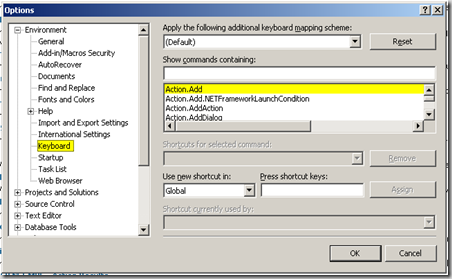
What does this give us? Two words: "Keyboard" "Shortcuts." You can essentially tie any command (save, build, copy) to a key combination.  These settings are controlled in the keyboard options dialog.

Tools > Options > Environment > Keyboard
2008-07-30_1911

In this dialog you can lookup all the commands, and assign key combinations to them.

If you see a command with a comma (',') in it, this means you pause.

For example "Ctrl+K, Ctrl+K" means hit "Ctrl+K" pause hit "Ctrl+K" again. Or, hold down the "Ctrl" key and hit the "K" key twice.

Some of the most common VS shortcuts I use are:

Ctrl+X Cut
Ctrl+C Copy
Ctrl+V Paste
Ctrl+Z Undo
Ctrl+Shift+Z Redo
Ctrl+S Save
Ctrl+G Go to line
Ctrl+Shift+B Build Entire Solution
Ctrl+K, Ctrl+K Add/Remove Bookmark
Ctrl+K, Ctrl+P Go to Previous Bookmark
Ctrl+K, Ctrl+N Go to Next Bookmark
Ctrl+M, Ctrl+O Collapse all (regions, methods, etc.)
Ctrl+M, Ctrl+P Expand All (regions, methods, etc.)
Ctrl+M, Ctrl+M Collapse/Expand Current
Ctrl+K, Ctrl+C Comment out Current Line or Selection
Ctrl+K, Ctrl+U Uncomment Current Line or Selection
F9 Add/Remove a breakpoint on the current line

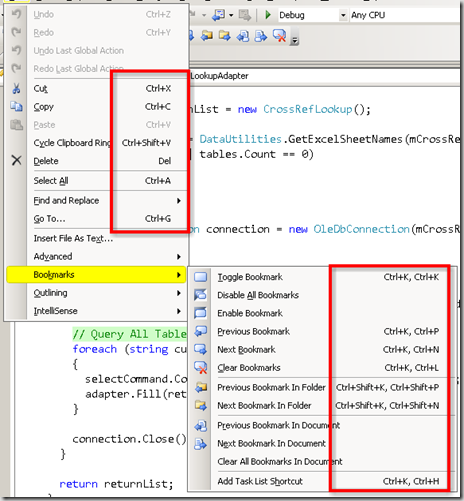
Most of the common commands appear in the menus for quick reference.
2008-07-31_1830

Some general non-VS shortcuts I also use:

Alt+Tab Switch windows.
Ctrl+Right Arrow Jump one "word" to the right
Ctrl+Left Arrow Jump one "word" to the left
Ctrl+Shift+Right Arrow Un/Highlight one "word" to the right
Ctrl+Shift+Left Arrow Un/Highlight one "word" to the left


Walking the Menus

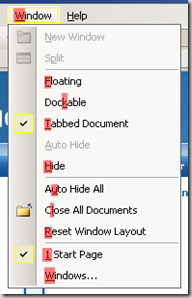
2008-08-04_1855Now, spend a few minutes exploring your menus and context menus. Look at all those commands and command categories. (Most having an underlined letter)

Using your Alt key and those underlined letters you can "walk the menus."

When you hit Alt, the menu bar gets focus. Use the letter shortcuts (the underlined letter) to select the action you want. This keeps you from taking your hands off your keyboard to grab the mouse to click the menus.

Some of my common "walks" are:

Alt, B, U Build Current Project (the project containing the document your working on)
Alt, D, P Attach the VS Debugger to a Process
Alt, D, D Detach the VS Debugger from all Processes
Alt, W, L Close all Documents/Tabs

The first three don't seem like much, but I'll explain how valuable they are in a later post.

Conclusion

The process of taking your hand off your keyboard home row, grabbing the mouse, dragging to target, clicking (repeated clicking if you have bad aim), and moving your hand back to the home row takes valuable seconds. Why not save them by learning a keyboard trick or two?

Monday, July 28, 2008

"ASP.NET Development Tips/Tricks" are coming!

During my years of developing in Visual Studio and ASP.NET, I've learned a few things here and there which helped me become more efficient when creating applications.

At the risk of sounding stupid, I'm going to share with the community some tricks I've learned. I don't know how many posts there are going to be, but I hope something I say might have value to someone else.

Sunday, February 17, 2008

Visual Studio 2008 Tour and Install Party

This month (February 27, 2008 18:00) I'll be speaking at the Dayton .NET Developers Group about Visual Studio 2008 and .NET 3.5.

The official blub is:

Visual Studio 2008 and .NET 3.5 are soon to be released, after a very public and open beta process. We will run around the products, and discuss what the new features are. This will briefly cover VS, WCF, WF, C# and VB.NET features.

<RandomSideNote>
I'm actually filling in for Brian Prince, who was filling in for Jeff Blankenburg. Both of whom are very busy men. Being that I'm a single guy, with no kids, or pets I figured I could jump in and help out. People seemed to be excited about this upcoming meeting, I just couldn't let it be canceled.
</RandomSideNote>